The full
spec.
Five features, measured against one job: getting every item on the punch list to Closed. Then who can do what, role by role.
01 — Capture
Circle it. Draw the arrow.
Photograph the problem and mark it up right on the photo. Drop a pin where it lives on the floor plan. Let the built-in assistant draft the description, or write your own. The person fixing it sees exactly what you saw.
- Photos per item
- Up to 10
- Markup
- Saved with the photo. Looks the same in the list, the item and the report.
- Where
- Floor, room, and a pin on the plan
- Details
- Trade, priority, due date, assignee. All editable after the item is logged.
- Privacy
- Location data stripped on the phone, before upload
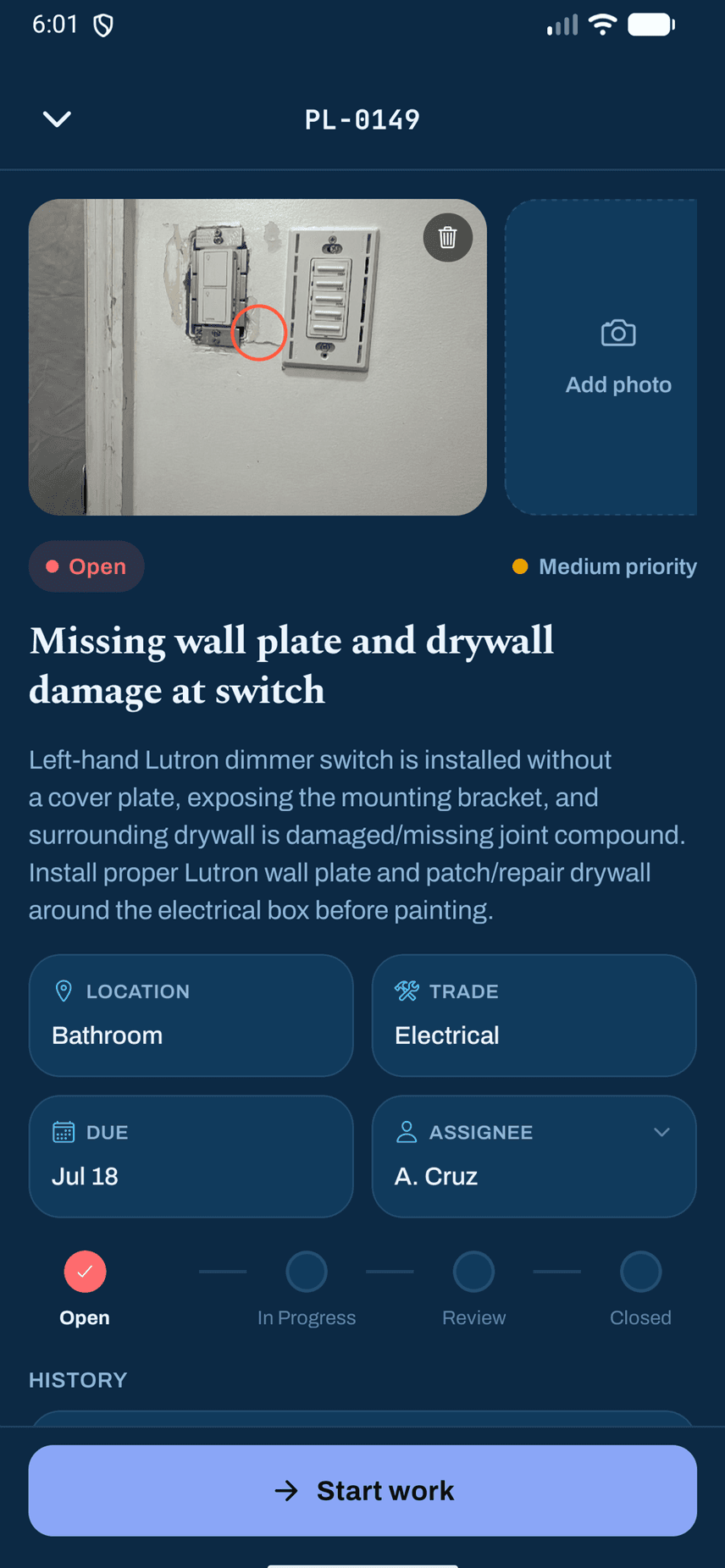
- A · MarkupCircled on the photo, saved with it
- B · AssigneeA firm, or a named person there
- C · StatusFour steps, checked by the server
02 — Assign and track
Send it to the right sub.
Each item goes to one trade, and that sub sees only their own work. Every status change is checked by the server, so the record holds up when it matters.
Step 1
Open
Logged with a photo and assigned.
Step 2
In Progress
The sub starts work.
Step 3
Ready for Review
The sub marks it ready, with a photo of the finished work if they like. The super can send it back with a reason.
Step 4
Closed
Only the superintendent verifies and closes.
- Assign to
- A subcontractor firm, so anyone there can pick it up, or a named person at the firm
- Several at once
- Pick several items and set their status or assignee together
- Filters
- By status and trade, so a long list stays readable
- Not mine
- A sub can say an item isn't theirs, with a reason; the superintendents are told
- Turnover
- Flag the items that block turnover, and filter to just those
03 — Offline
Works with no signal.
Basements, elevator shafts, dead zones. Every change is saved on the phone first and syncs on its own when you are back on the network. There is no offline mode to turn on.
Three items in the cellar.
- 01A superintendent walks the cellar of a brownstone. No signal, no Wi-Fi.
- 02She photographs a sump pump that is not cycling, circles the float, pins it on the cellar plan, and assigns it to the plumber. Then a missing outlet cover. Then a cracked stair tread.
- 03Three items, saved on the phone, marked with the time she took them.
- 04Back on the sidewalk the phone finds signal. The three items upload, the plumber's phone buzzes, and the dashboard on the office computer shows three new open items. Nobody pressed anything.
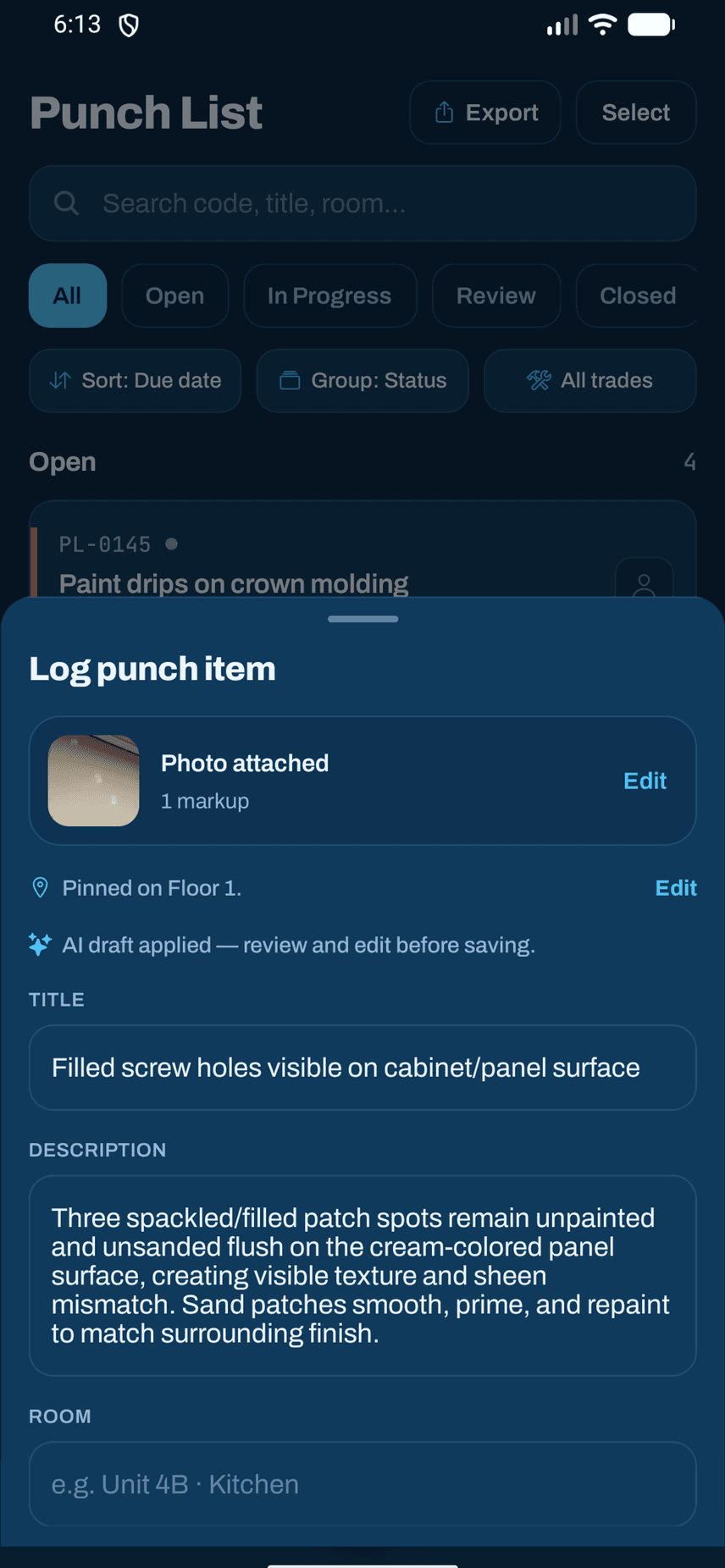
- Saved
- On the phone first
- Sync
- Automatic when signal returns
- Two people, one item
- Status changes are checked by the server in the order they arrive. Photos are always added, never replaced.
04 — Notifications
Told when it's yours, not about everything.
- Push
- New assignments, items ready for review, mentions, closed work
- Switches
- One for each kind, in Settings. Assignment and mention alerts start on.
- Daily digest
- Optional email at 6 AM Eastern: what is open, overdue and due today
- Activity feed
- The same events on the dashboard, for anyone who would rather look than be told
05 — Reports
A sheet each sub can sign.
The per-contact report lists only what that sub still owes, so it can be handed over at the end of a walk and signed on the spot.
- Formats
- PDF, CSV
- Scope
- The full punch list, or one contact's outstanding items
- Layout
- Grouped floor by floor, with counts for outstanding, overdue and due today
- Includes
- Photos, markups and floor-plan pins
- Sign-off
- The contractor and the superintendent sign on the phone; the signatures print on the PDF
- Branding
- Your company logo and name
- CSV offline
- Yes
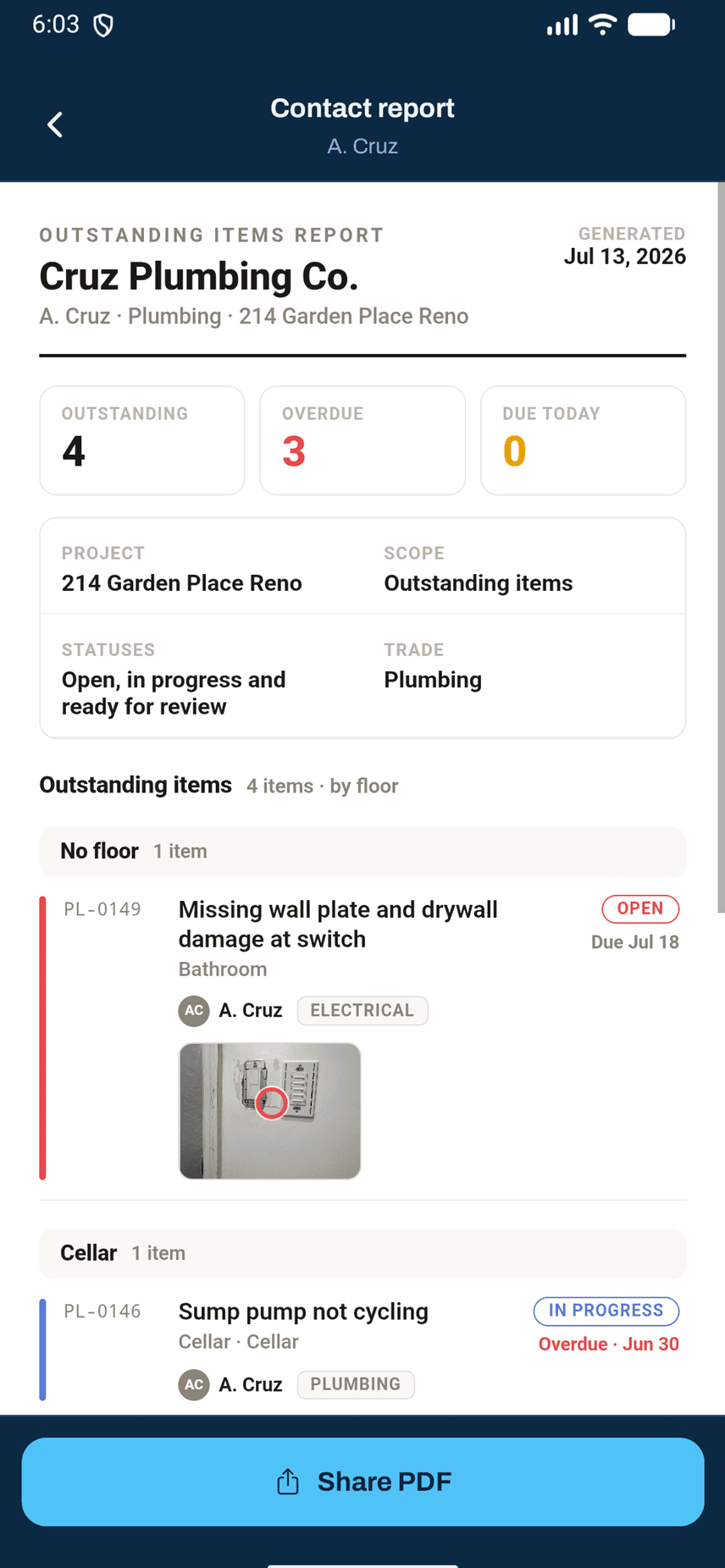
- A · CountsOutstanding, overdue, due today
- B · GroupingFloor by floor
- C · PhotoMarkup printed on the sheet
- D · ShareLeaves the phone as a PDF
06 — Compare roles
Who can do what.
Administrators run the company. Superintendents run the job. Subcontractors see the work assigned to them. An owner or architect can join a project as submit-only.
| Capability | Administrator | Superintendent | Subcontractor | Owner or architectSubmit-only |
|---|---|---|---|---|
| Register the company and keep its phone book | Yes | No | No | No |
| See every project the company owns | Yes | Projects they are on | Projects they are on | Projects they are on |
| Create a project and upload floor plans | Yes | Yes | No | No |
| Add people to a project | Yes | Yes | No | No |
| See the punch list | All items | All items | Items assigned to them or their firm | No |
| Log an item | Yes | Yes | No | Submits it for review |
| Approve or decline a submission | Yes | Yes | No | No |
| Assign and reassign items | Yes | Yes | Within their own firm | No |
| Start work, mark Ready for Review | Yes | Yes | Yes | No |
| Close an item | Yes | Yes | No, enforced on the server | No |
An administrator acts as a superintendent on every project the company owns.
Running a closeout walk without the app yet? Grab the free punch list template.
Get it
Built for
closeout.
Free while in beta. No card.
Running the company? Register your company
Not on iPhone? Android is coming